MacBook Air Reset
Apple MacBook Air Reset / OS Re-install
You can restore your Mac to factory settings by erasing your Mac, then reinstalling macOS using the built-in recovery disk. Before you erase, back up your essential files. If you’re installing on a portable computer, make sure your power adapter is plugged in.
Important: To reinstall macOS, you must be connected to the Internet.
- In the menu bar, choose Apple menu > Restart. As your Mac restarts, hold down the Command and R keys until the macOS Utilities window appears.
- Select Disk Utility, then click Continue.
- Select your startup disk on the left, then click Erase.
- Click the Format pop-up menu, choose Mac OS Extended, enter a name, then click Erase.
Important: Erasing the disk removes all the information from the disk. Be sure to back up the information you want to keep to an external device. - After the disk is erased, choose Disk Utility > Quit Disk Utility.
- Select Reinstall macOS, click Continue, then follow the onscreen instructions.
In the menu bar, choose Apple menu > Restart. As your Mac restarts, hold down the Command and R keys until the macOS Utilities window appears. Select your startup disk on the left, then click Erase. Click the Format pop-up menu, choose Mac OS Extended, enter a name, then click Erase.
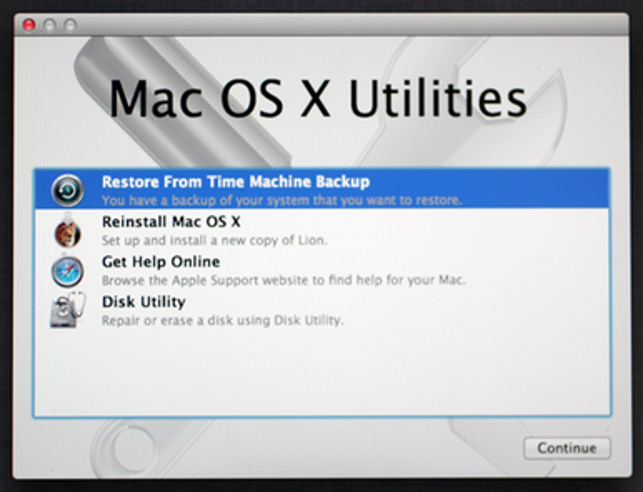
Apple macOS Sierra: Erase and reinstall macOS - Apple Support
Hold the power button for 5 seconds to shut off.
Power on and hold the Shift key down when you hear the startup tone. This should perform a safe boot.
Then goto System Preferences > Startup Disk > select your MacIntosh HD > click restart.